Tutorial 2 of 7
Import your bank statement and compare it with your budget
Beginner 7 min
Turn a CSV export from online banking into categorised transactions, compare them with a monthly plan and find recurring payments you are not tracking yet.
Ledgerly never logs in to your bank. Instead you download a CSV export (most banks call it Export, Download transactions or Umsätze exportieren) and import it. The file is read in your browser.
1. Plan a budget first (optional, but useful)
Open Budget and click Add income and Add spending category. For each line enter a name, the planned amount Per month and Keywords for bank rows — comma-separated words that appear in the bank text, for example rewe, edeka, aldi for groceries.
Plan only variable spending here. Subscriptions, contracts, loans and utility bills have their own desks and are added to the dashboard automatically, so nothing is counted twice.
2. Import the CSV
Choose File → Import bank statement (CSV)… or the button on the Transactions desk. Paste the CSV text or click Open CSV file….
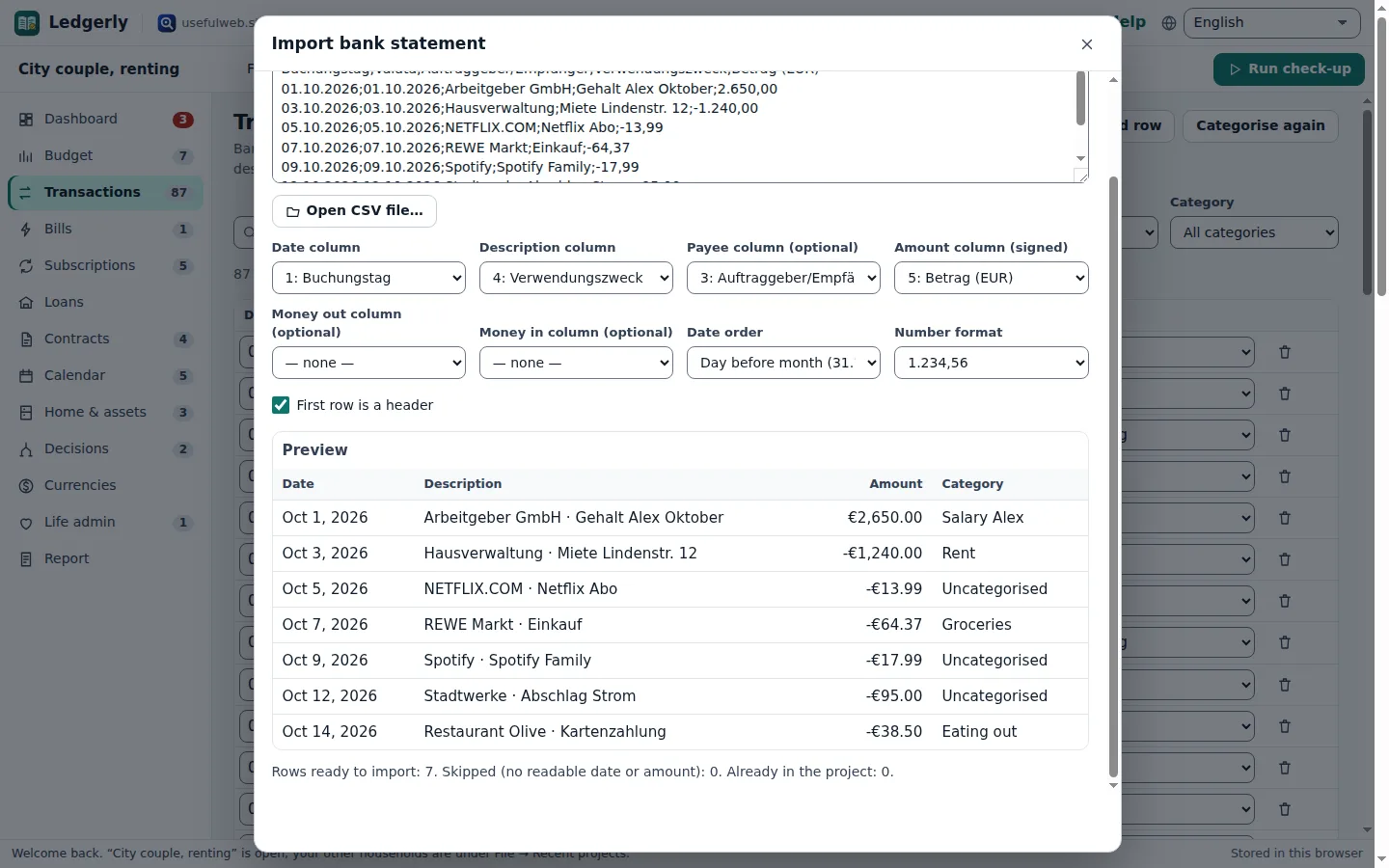
Ledgerly detects:
- the Date column, Description column and an optional Payee column from typical English and German headers (Date, Buchungstag, Verwendungszweck, Auftraggeber/Empfänger …);
- a signed Amount column, or separate Money out and Money in columns;
- the Date order (31.12.2026 vs. 12/31/2026) and the Number format (1.234,56 vs. 1,234.56).
Check the Preview: every row shows the date, description, amount and the category your keywords picked. The status line tells you how many rows are ready, how many were skipped because they had no readable date or amount, and how many are already in the project. Click Import rows.
Importing the same file twice is safe: rows with the same date, amount and description are skipped.
3. Work with the rows
On Transactions you can search the descriptions (press /), filter by Month and Category, fix a category by hand or delete a row. Categorise again re-applies your keywords after you changed them on the Budget desk.
4. Budget vs. actual
Back on Budget, the card Budget vs. actual shows each line's planned and actual amount for the selected Month, what is left (or how much you went over) and a small meter. Uncategorised money out and in is listed below. The chart Money out per month shows the trend over all imported months. If a spending line is more than 10 % over plan in the latest month, the Dashboard adds a finding.
5. Recurring payments you are not tracking
At the bottom of Transactions, Recurring payments lists debits that repeat weekly, monthly, quarterly or yearly with a stable amount (three similar payments, two for yearly ones). Payments that already match a subscription, contract, loan, meter or budget line are marked tracked. For the others, Add as subscription creates a subscription with the detected amount and billing period.
Ready to try it?